Creating Teams Shifts based on Job Positions (Recommended)
Job Positions provide a more flexible and modular way to manage shifts, as they are not tied to specific contacts. This makes it easier to adapt to organizational changes, rotations, or replacements within the team. Here you’ll learn how to configure shifts based on Job Positions to optimize the assignment of responsibilities in your support team.
Access the Teams Shifts section
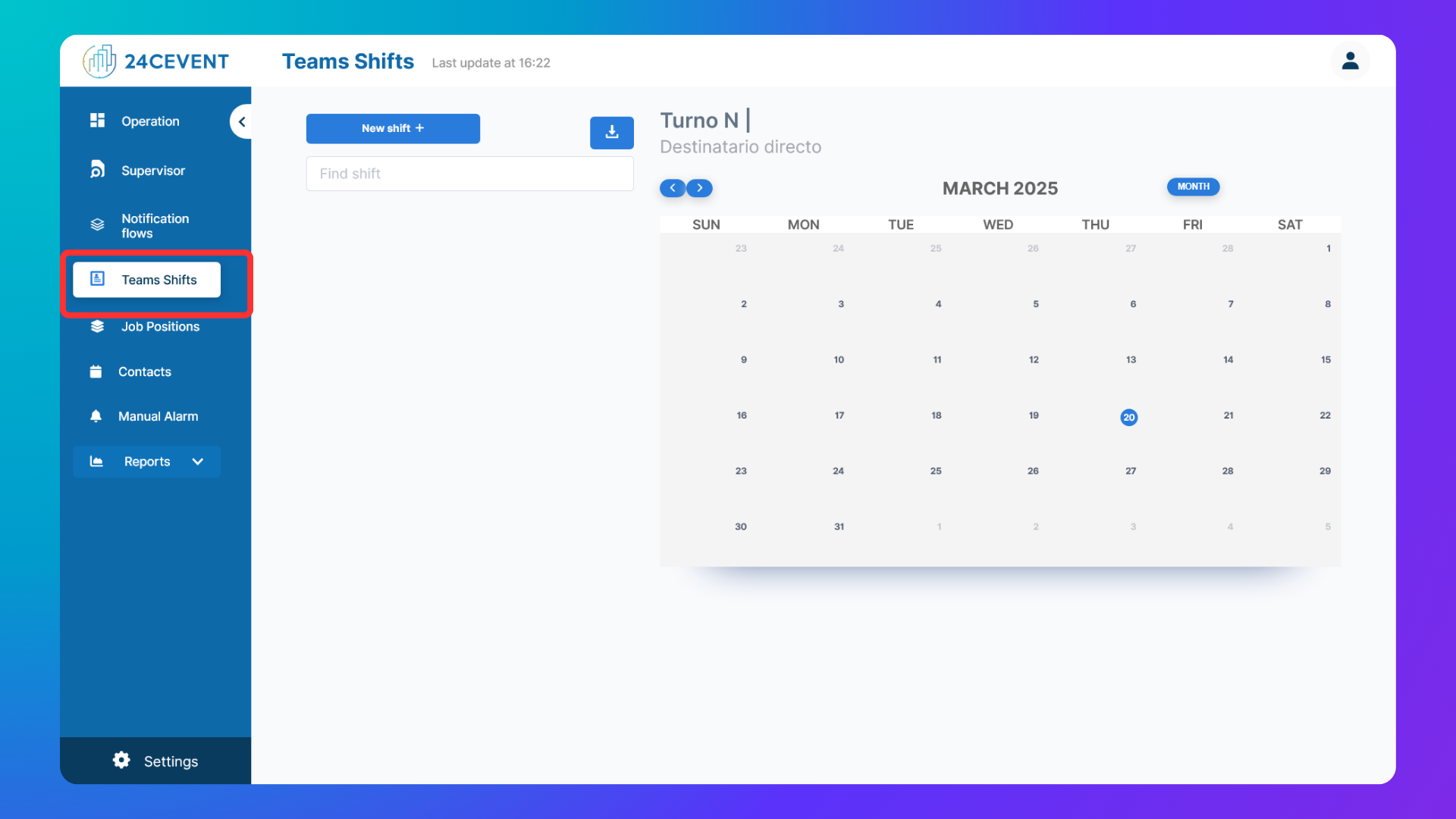
Click "Teams Shifts" on the left-side menu.
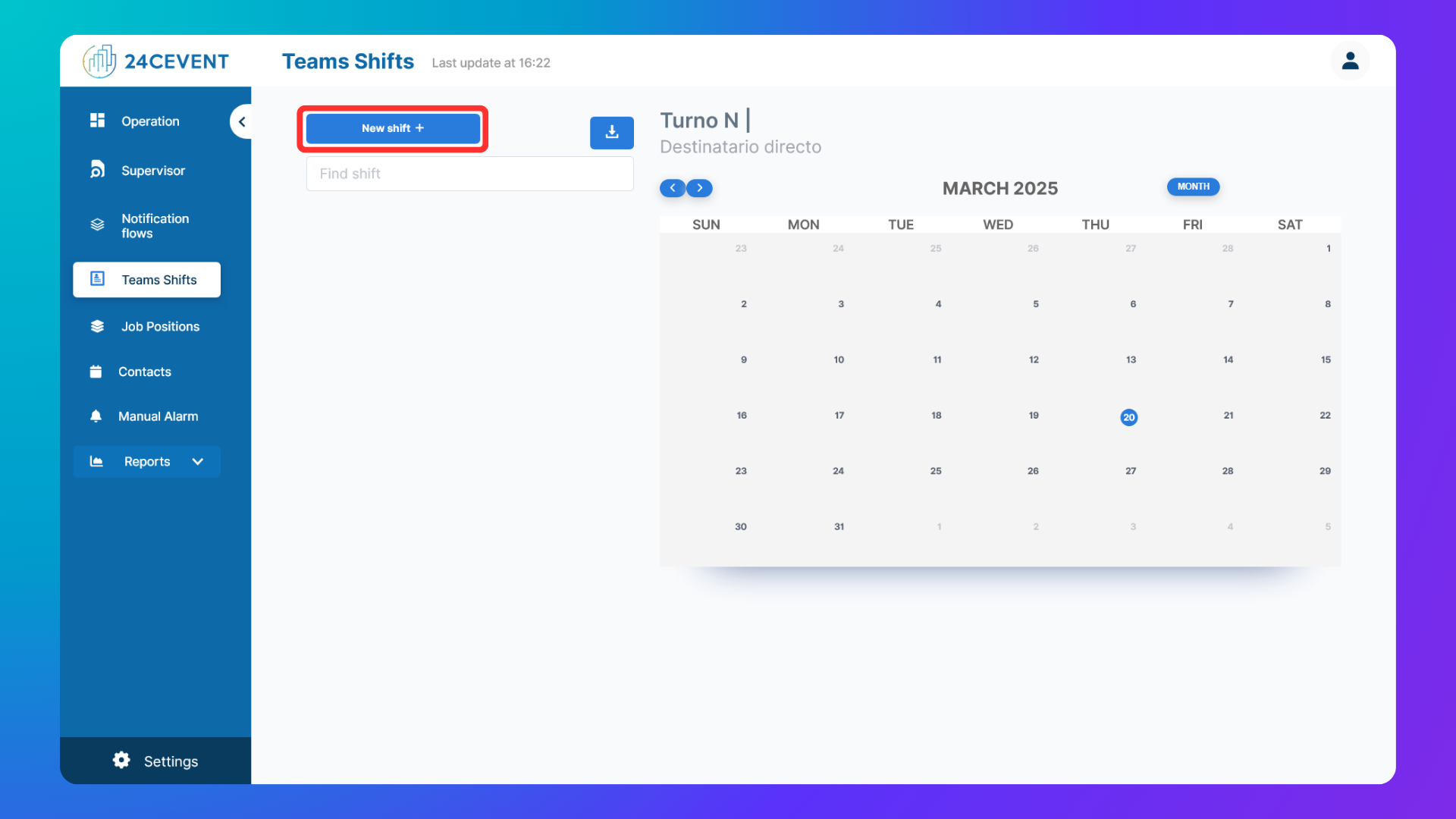
Click "New shift"
Locate and click the "New shift" button, usually at the top left.
Fill in the fields
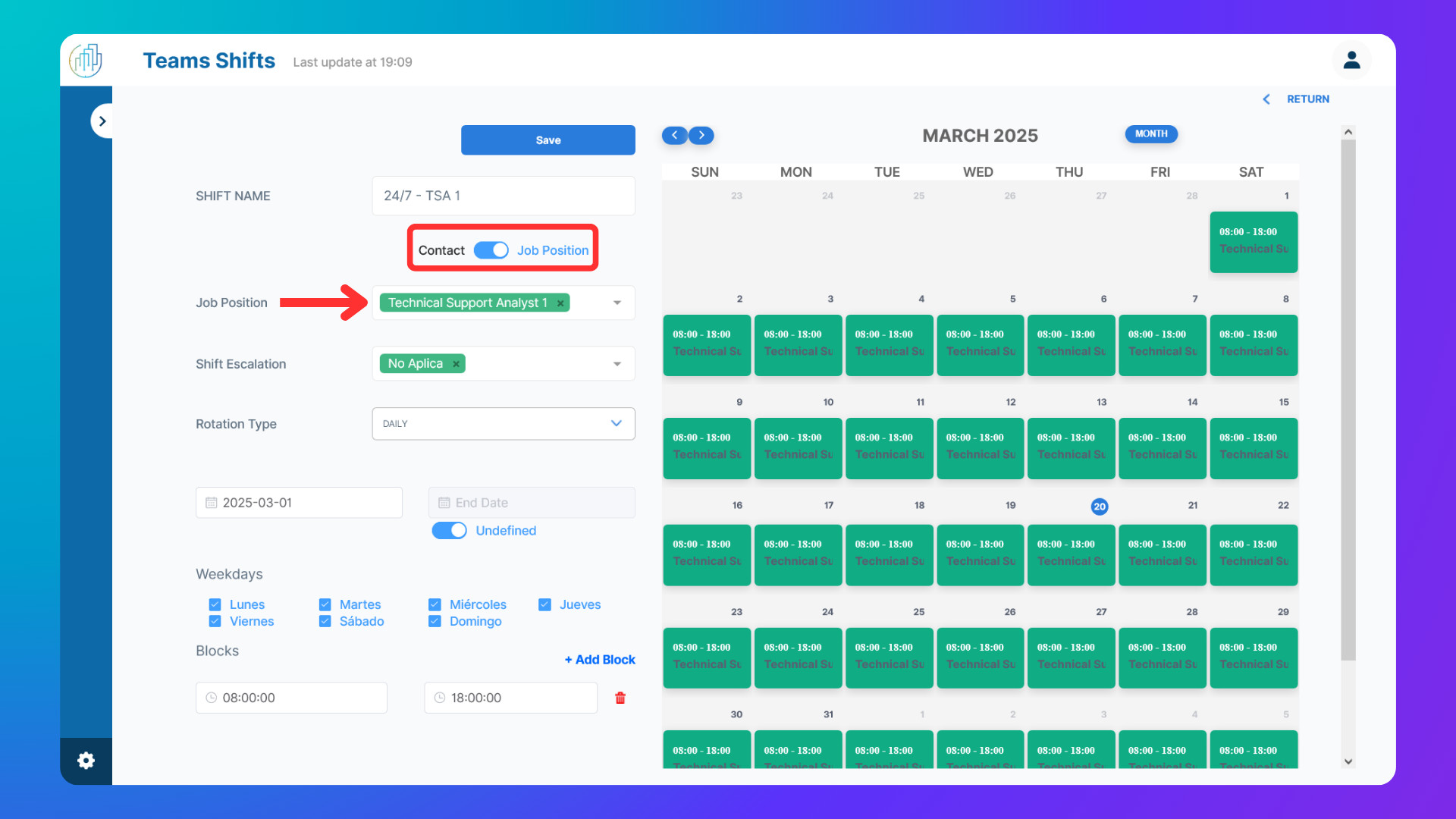
Shift Name: Enter a descriptive name (e.g., "24/7 - TSA 1").
Job Position: Select the Job Position option and assign one or more job positions to the shift.
Escalation Shift: Select an escalation shift or choose "No Apply" if not needed (to understand how to set up escalations, go to the "Escalation in Team Shifts" section).
Rotation Type: Choose the shift's rotation pattern.
Start Date & End Date: Set the shift’s validity period or check "Indefinite" if ongoing.
Days of the Week: Select active days.
Time Blocks: Define shift hours with "Start Time" and "End Time" (HH:MM format). Click "Add Time Block" to add more if needed.
Save the Shift
Click "SAVE" to store the new shift configuration.
Was this helpful?
Still need help? Ask the team